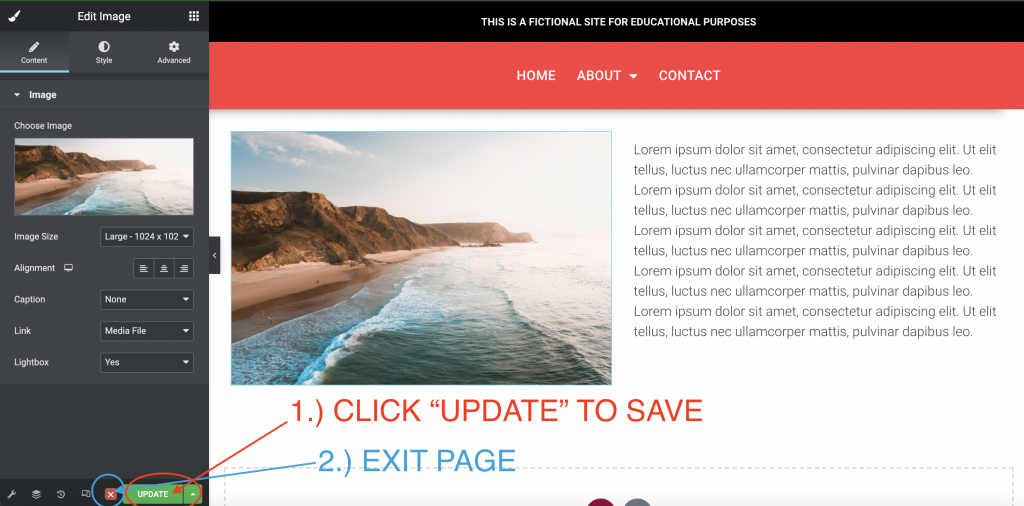
If you would like to upload an image from the page editor to your media library, this is for you.
Click On Existing Image
Once you are in the page editor, click on the Image you wish to replace.
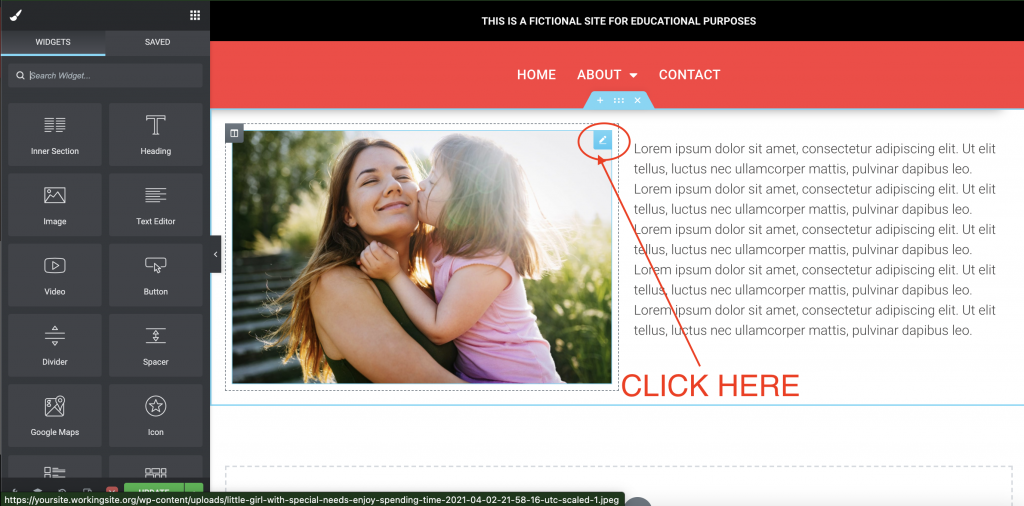
That will bring up the image settings on the left.
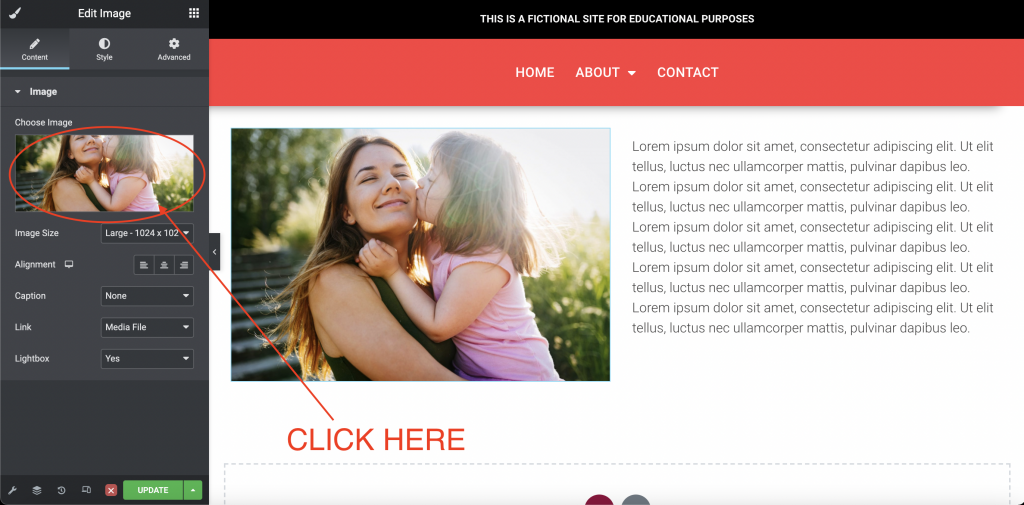
Click on “Choose Image”
In the settings click on the photo box under “Choose Image”. This will bring up the Media Library.
Upload File
First make sure you are in the correct folder that you wish to upload to. Then, click on “Upload Files”, and “Select Files”.
You can also add a new folder if necessary by clicking “Add New Folder”.
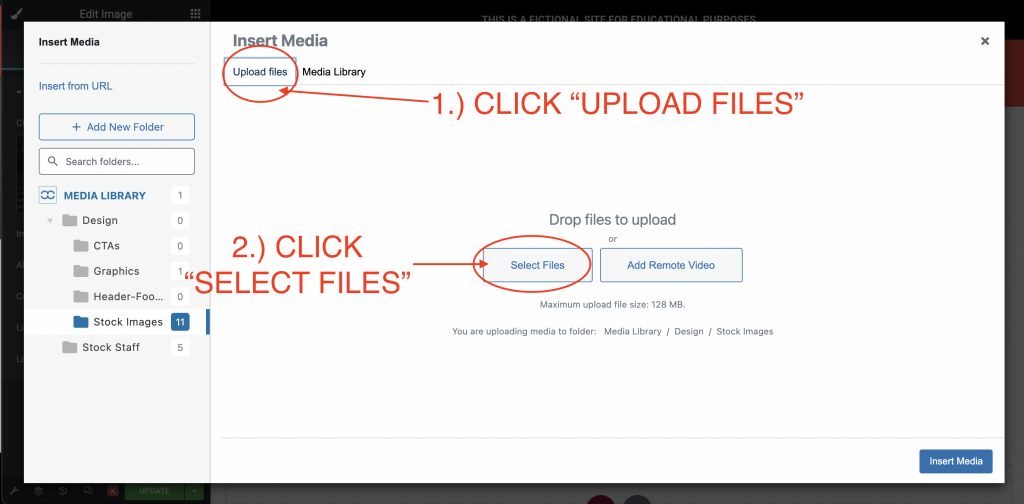
You can also drag and drop the file from your computer into the “Drop Files to Upload” space.
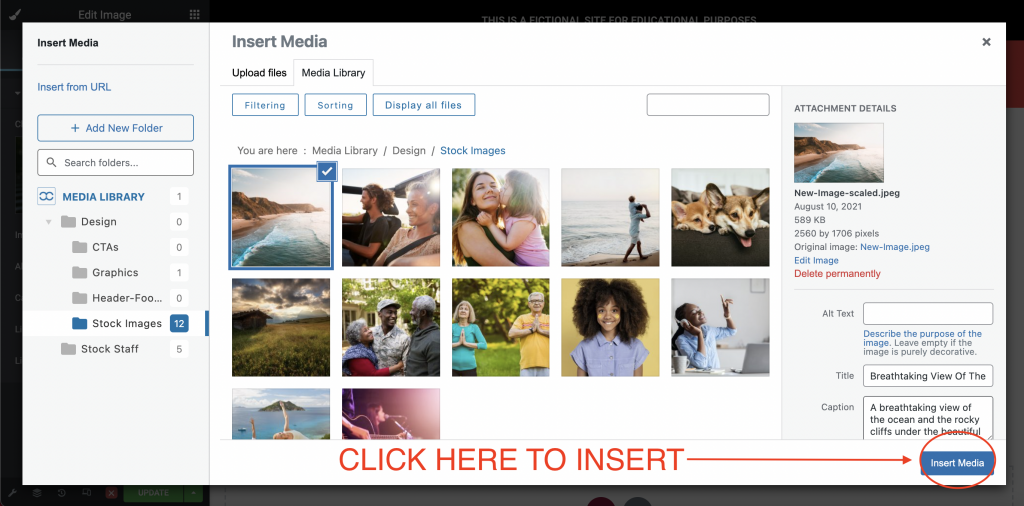
Insert Media
Once the upload is finished loading, you will see it in your library. Click “Insert Media” to have it replace the existing image.
Save & Exit
Always remember to save your work by clicking “Update” before exiting.