Upload PDF to Media Library
The first step is uploading your pdf to the media library. You can access the media library by clicking “Media” on the top of your screen in the admin toolbar.
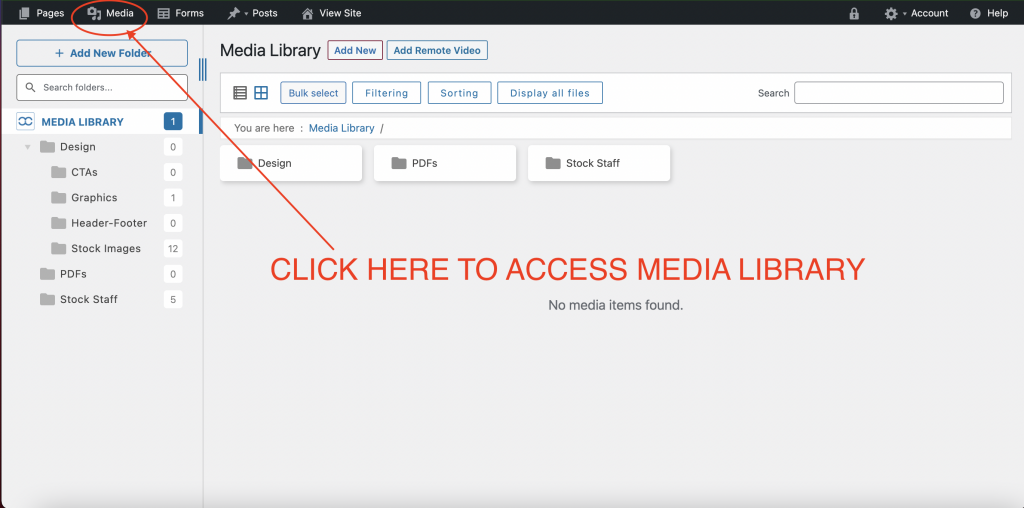
Once you are in your Media Library, click or create the folder you wish to upload to. In the folder click “ADD NEW”.


Go to the Page You Want to Embed the PDF
Once you have the PDF uploaded, it is time to embed it. Go to the page by clicking back to “View Site” and navigating to the page that you want to embed the PDF to.

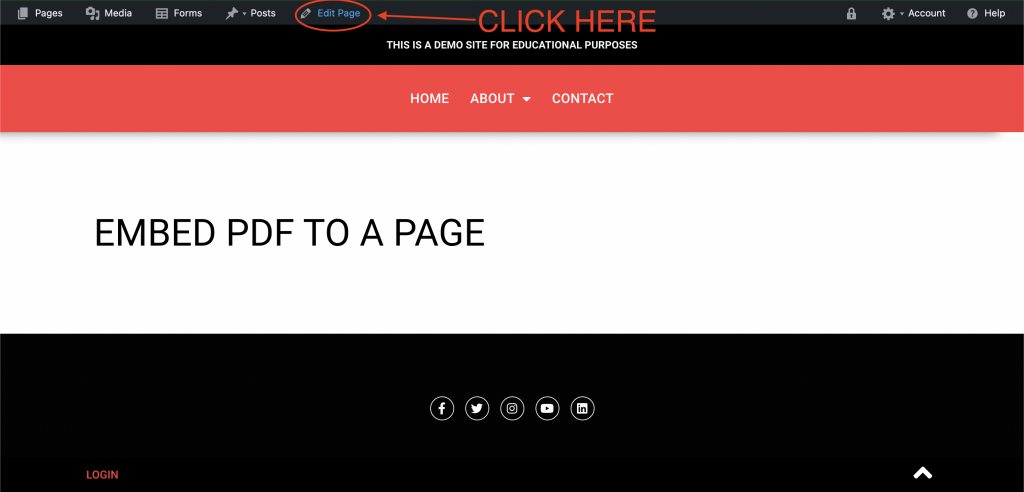
When you are on the correct page, make sure that you enter the edit mode by clicking “Edit Page”.
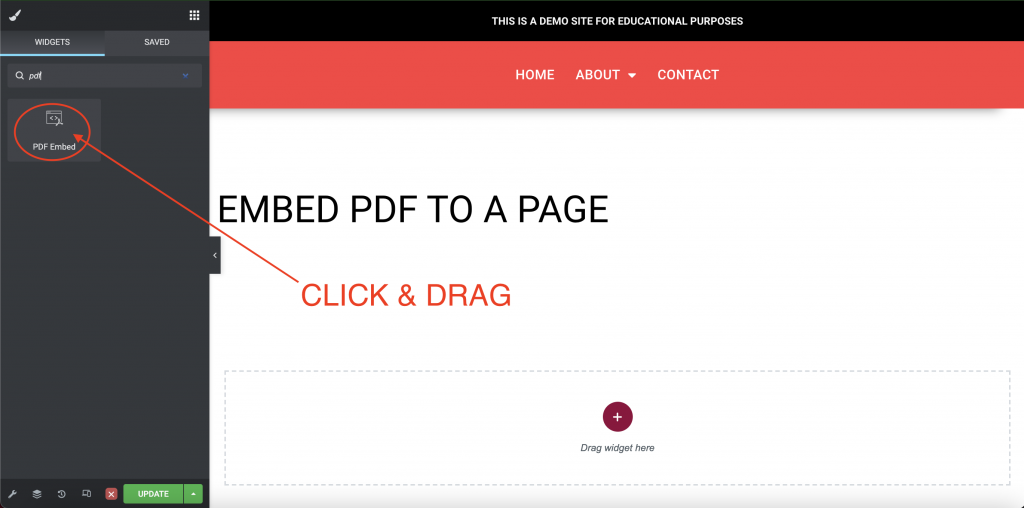
Search “PDF Embed” in the Widget Searchbar
Once you find the “PDF Embed” widget, click and drag it where you want your pdf to appear.
Select PDF
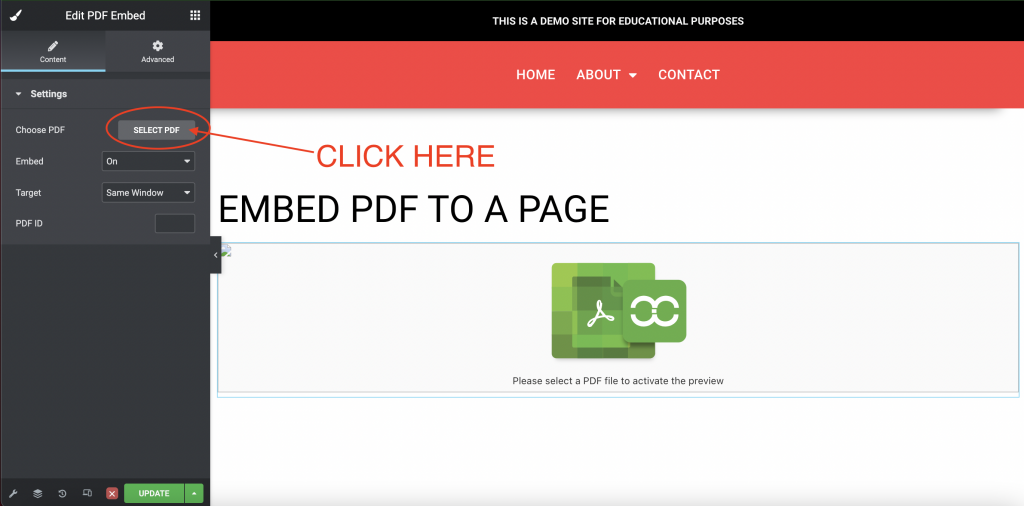
After dragging the widget, its settings will appear on the left of your screen. Click on “Select PDF” to open your media gallery and search for the PDF you uploaded.
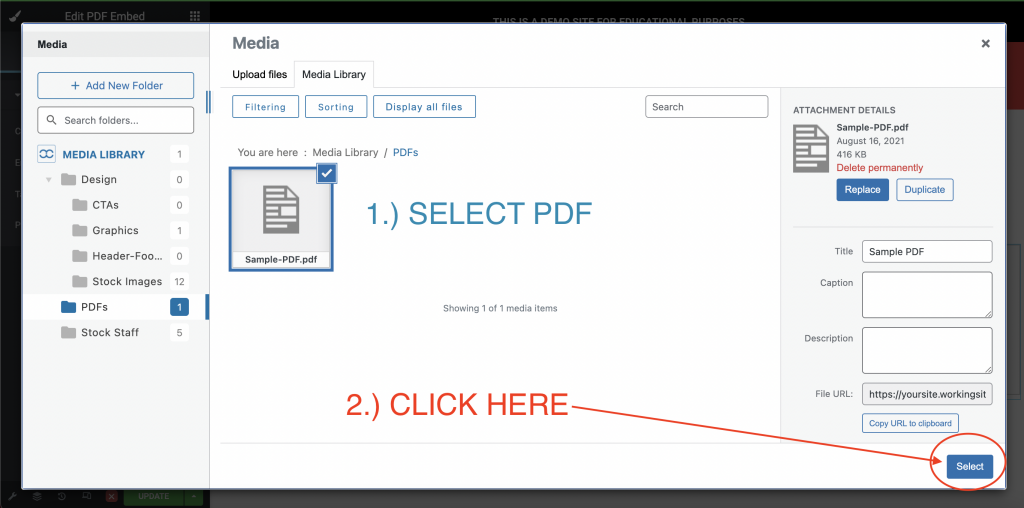
Once you select the PDF, click “Select” to place it.
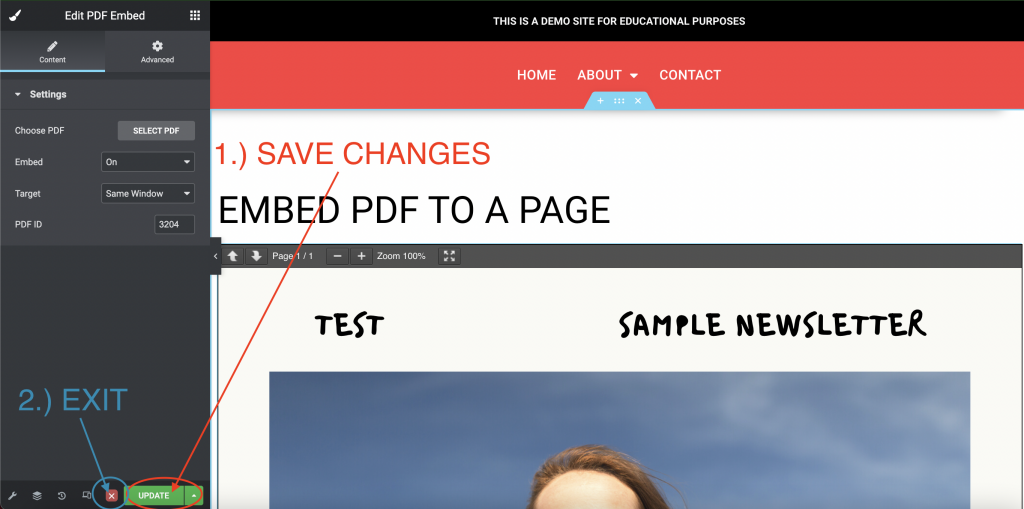
Save & Exit
You will see the PDF embedded onto your page now. Always be sure to save your changes before exiting.