
The Media Gallery works very much like the file organizing system on your computer. You are able to add folders and put your files in the appropriate folders. In this section we will go over some helpful organization tips for your Media Library.
Click & Drag
To move files from one folder to another you simply click & drag them.
This also works with folders and sub-folders. If you want to move a folder inside of another folder, simply click & drag.
Delete a File or Folder
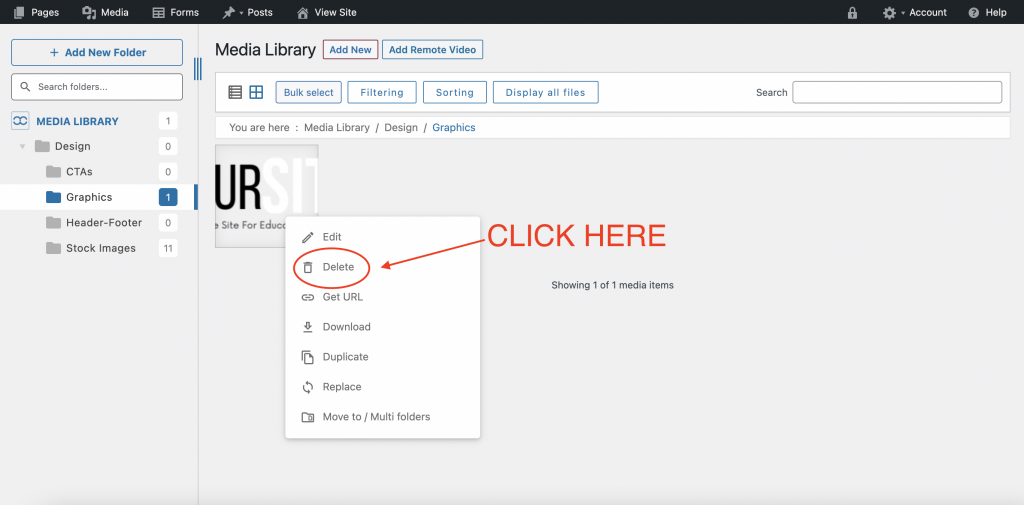
There are a few ways to delete a file. The easiest way is to right click on the file and click “delete”.

Bulk Select
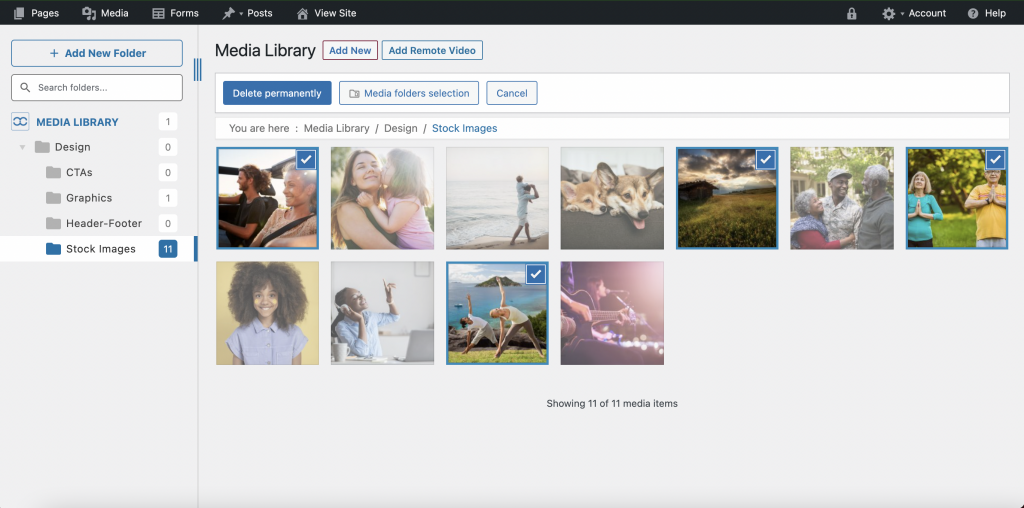
This is helpful if you want to delete numerous files within a folder or move numerous files to another folder. Click “Bulk Select” and then select the items you wish.

Bulk Delete
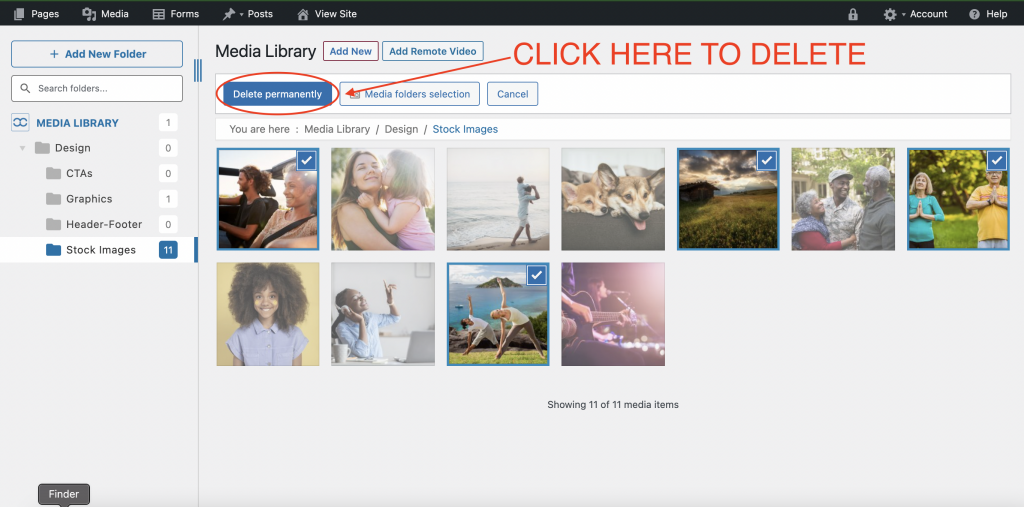
After you selected all of the items you wish to delete, click “Delete Permanently”. A window will show up making sure you want to delete. If you do, click “OK”.
Bulk Organize
You can move multiple items to a new folder by using “Bulk Select”. Once you have all of the items selected that you want to move, simply click and drag the items to the appropriate folder as so:
Final Notes
- You cannot delete a folder that contains items in it. If you want to delete a folder, make sure that it is empty.